How to Download Kobo eBooks (Including the Ones They Won’t Allow) And Strip the DRM


For as long as I’ve shopped there, Kobo has always had an issue with not letting customers download copies of all of the ebooks they buy. I’ve never understood why and they’ve never supplied a consistent answer, but some of the ebooks bought at Kobo can only be read in Kobo hardware and apps.
Edit: This post is being updated on 29 January 2019. The instructions worked on that day.
Historically this has been a minor issue, but there are a growing number of reports lately, both on Dear Author and on MobileRead Forums, that suggest that the problem may be getting worse (there’s also one report that claims this is a new problem, but it is bogus).
It’s not clear whether the increase in reports are the result of more titles being affected rather than more customers encountering the issue, but since there are a growing number of complaints I would like to offer a solution.
There is a calibre plugin which can grab all of your Kobo ebooks, convert them from Kobo’s own funky Kepub format, strip the DRM, and add them to your calibre library.
It’s called oboK, and it works with the Kobo for PC app. You’ll need to download the ebooks with Kobo’s app first, and then run calibre. With a minimum number of clicks, the oboK plugin should be able to rescue most of your DRMed ebooks. Some formats aren’t supported by the Kobo4PC app (graphic novels, for example) and can’t be downloaded.
You can download the plugin here:
https://the-digital-reader.com/wp-content/uploads/2015/02/obok_plugin-3.1.1_trad.zip
Or the older version here:
https://the-digital-reader.com/wp-content/uploads/2014/10/obok_plugin_3.0.7.zip
***
The Usual Disclaimer
oboK, and the instructions provided to help install it, is intended strictly for personal use to enable a reader to rescue their purchases from the clutches of Kobo and the publishers. Please don’t pirate.
***
Like any calibre plugin, you can install it by right clicking on the preferences button, scrolling to the bottom of that menu, and then selecting the plugins option. When that menu pops up, select the option to load a plugin from a file.
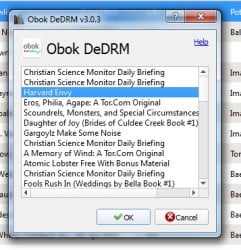 Installation should be easy, and once it’s complete you should have a new button on the menu bar. Click it and the oboK plugin will spring into action. A new menu will appear and prompt you to select which of you Kobo ebooks you would like to rescue.
To be completely honest, I have not been able to get the plugin to work. But I am told other people have, and so I am sharing it with you today.
Update: I’ve solved my problem by deleting and reinstalling the Kobo app. Now Obok is able to rescue my Kobo purchases.
If you have a problem getting oboK to work, and then solve that problem, please leave a comment. I would like to be able to use it myself. Thanks!

Comments
oj829 September 25, 2014 um 3:37 pm
I’m very familiar with the command-line version of obok and have used it a long time. But the Calibre plugin strikes me as a beast out of the blue. It doesn’t seem to have any history in the regular TOOLS package, and there’s little chatter about it on MobileRead.
Do you mind if I ask from where this magic appeared?
Nate Hoffelder September 25, 2014 um 3:49 pm
It was sent to me by a user at MobileRead. Since you also asked a similar question, I’ll continue this conversation over there (via PM).
Marilyn Rideout April 8, 2015 um 8:12 pm
I had this problem, unable to get purchased book to sync to reader.
Had never used Calibre, installed it and the Obok plugin, worked perfectly.
Thanks
Gary September 25, 2014 um 4:13 pm
I can’t be bothered to install oboK.
I have yet to find a Kobo book that isn’t available for exactly the same price on Google Play. So, I simply stopped buying at Kobo when I first encountered this problem. Now I buy my ebooks from Google. It is no harder to do, and the Google versions of the books I have bought have all downloaded with no problems.
To be fair to Kobo, they gave me a refund for the book that wouldn’t download, but having to talk to customer service to ask for a refund is more trouble than I will accept, when there is an alternative vendor available.
I have no customer loyalty to any vendor, and it is easy to drive me, and my money, away from your business.
Kaetrin September 26, 2014 um 12:14 am
Gary, do Google play books use the same ADEPT DRM? I’ve been reluctant to buy from there because I’ve been unsure whether I can strip the DRM (for personal use/back up only) from those books. It’s the reason I don’t purchase from iBooks.
Nate Hoffelder September 26, 2014 um 7:11 am
Yes. Google uses the same DRM.
Kaetrin September 26, 2014 um 9:35 pm
Great. Thx 🙂
Byrdie September 25, 2014 um 6:43 pm
Thanks for the tip on the plugin. I switched to Kobo when Fictionwise closed and Barnes & Noble suddenly decided they didn’t want non-US customers. Hopefully Kobo won’t be stupid enough to follow B&N down the no-downloads-allowed path, but in case they do I want to be prepared. Decrapping my DRMed books & backing them up will be much easier now, thanks to this and the Tools.
Daily Links: Kobo downloads, Bendgate, more | The eBook Evangelist September 25, 2014 um 11:33 pm
[…] the Digital Reader, How to download Kobo books (including the ones they don’t want you […]
DeeDee September 26, 2014 um 2:52 am
Thanks, I haven’t bought a book from kobo that I can’t download and I strip the DRM right away because I prefer reading with CoolReader on my reader, but I would keep that info in mind.
oj829 September 26, 2014 um 3:56 am
I bought from Google Books until they stopped running the back-end for indie bookstores. (I thought that was a dick move.) I only recently found that I could download epubs to ADE from my Google Play library (desktop web), and did not have to rely on the brick and mortar store’s (closed) website for epub downloads.
As long as Google Books downloads continue to work with ADE 2.0, I guess I’ve got that option (again). Good to know. Thanks.
baochan September 26, 2014 um 10:01 am
Here’s a direct link to the Kobo Desktop installer, if you can’t get the download button to work and don’t feel like digging through their broken JavaScript:
http://download.kobobooks.com/desktop/kobodesktop/kobosetup.exe
Nate Hoffelder September 26, 2014 um 10:07 am
Thanks. It worked for me, so I didn’t think to include this.
Nighty September 26, 2014 um 11:15 am
Now if it could only grab the rest of the books off android devices with the kobo app…
Nate Hoffelder September 26, 2014 um 11:56 am
That shouldn’t be too hard to add to the plugin, actually. I’ll forward the suggestion.
Greg September 28, 2014 um 6:18 pm
Actually that’s not as easy as it might seem, because Obok can’t calculate the keys necessary for decrypting books that have been copied over from other devices and AFAIK there’s still no known way to extract the key information from Kobo on Android. I know Obok command-line couldn’t do it and I think the plugin is just a GUI adaptation without anything majorly new under the hood. I would be more than happy to get corrected on this.
Nate Hoffelder September 28, 2014 um 7:26 pm
Damn. I was hoping the plugin could simply grab the keys; it sounds like they have to be calculated.
Kobo Promises to Fix eBook Download Issue – The Digital Reader September 26, 2014 um 5:13 pm
[…] in fact been so many complaints that yesterday I was inspired to post a solution in the form of a calibre plugin which stripped the DRM from your Kobo purchases, converted them to standard Epub, and loaded them into your calibre […]
Bansha September 28, 2014 um 2:53 am
One question: How can I convert unDRM kepub to epub? This plugin only displays DRMed items.
I have 10 kobo books, 6 of them are DRM-free.
I tried drag files into Calibre or into the plugin, nothing happens.
Nate Hoffelder September 28, 2014 um 8:19 am
There are reports over at MobileRead forums that you can simply copy the kepub files out of Kobo’s folder, change the suffix, and then load them into calibre.
You can find the kepub files here on windows:
*/AppData/Local/Kobo/Kobo Desktop/kepub
I’ll try to confirm this later today.
Greg September 28, 2014 um 6:24 pm
That’s pretty much it. The no-extension files in the kepub folder are in fact epubs and the ones without DRM can simply be dragged straight into Calibre once you’ve changed their extension to .epub . You can drag the DRMed ones as well and get the metadata and such from them, but the contents will be garbled for those.
Rev. Bob October 14, 2014 um 11:44 pm
The "Modify ePub" plugin for calibre now has an option specifically designed to clean up non-DRM kepubs, turning them into sleeker EPUBs. Once you use the obok plugin to get the kepub into calibre, just use Modify ePub to strip out that extra gunk, and you should have something very close to the original pre-Kobo form of the book.
Kaetrin October 15, 2014 um 12:36 am
Rev. Bob – where do I get the Modify ePub plugin from?
Rev. Bob October 15, 2014 um 1:31 am
You can get it directly through the calibre plugin interface, and there’s a thread for it on MobileRead.
Kaetrin October 15, 2014 um 1:35 am
thx – I found it that time. 🙂
Kaz Augustin September 28, 2014 um 5:15 am
Calibre tells me that the oboK plugin "cannot run on Linux". Just fyi… (Yes, I’ve installed other plugins before, no probs.)
Nate Hoffelder September 28, 2014 um 8:05 am
I’ve heard (but have not double checked) that this plugin is now available directly from Apprentice Alf. That version might be newer, so I would suggest trying it.
Here:
http://apprenticealf.wordpress.com/2012/09/10/drm-removal-tools-for-ebooks/#comment-49472
Greg September 28, 2014 um 6:17 pm
The plugin doesn’t work on Linux because it needs to access the Kobo Desktop app’s database on the same system and that’s not available on Linux so there’s nothing for it to work with there.
Greg September 28, 2014 um 6:09 pm
Nate, if you like, feel quite free to delete my out-of-place replies and repost their contents where they were meant to go. Sorry about the mess.
Nate Hoffelder September 28, 2014 um 6:10 pm
I can’t actually move comments around. WP doesn’t offer that ability. But if you did repost I can delete the misplaced ones.
Greg September 28, 2014 um 6:29 pm
OK, looks like I was finally able to reply properly, so you can remove all my non-reply posts. Sorry once again.
purple lady September 29, 2014 um 10:39 am
I have a book I bought at Sony that was kepub only when it transferred to Kobo. The books are different – the epub has the chapter headings as a clickable link and has the font specified as serif. The font size is also bigger in Calibre’s viewer for the kepub. I didn’t look further than the first page in the first chapter so there may be more differences.
So the books are different and there may be other differences in other books. If I don’t know what they might change in a book I’d prefer to have the original.
Rosie October 14, 2014 um 7:24 pm
Nate’s updated the plugin link to v3.0.6.
The update includes:
Alpha sorted
DRM free kepubs now listed
'*' beside DRM free kepubs in the listing
Stan October 15, 2014 um 12:45 pm
Still not compressing the deDRMed contents, I see. What gives?
Rosie October 15, 2014 um 5:20 pm
thanks for the info. Nate’s added the new version: 3.0.7
Compression issue resolved.
Stan October 16, 2014 um 10:04 pm
Thanks!
BTW, is this generally the place to give feedback on this plugin or if not, then where to do it? I know this problem was already reported at Alf’s so it doesn’t seem the devs check the comments there.
Rosie October 16, 2014 um 11:41 pm
Yes, please report any issues here and they will be picked up. 🙂
Rosie February 9, 2015 um 8:14 pm
Nate’s added the link for the latest obok version: 3.1.1.
The changes in this version are:
– Spanish, German and Dutch translations (for use in Calibre)
– Interface appearance now 'gorgeous'!!
– Red or green lock now displays against title as to whether DRM or DRM free
– Title, author and series now able to be viewed within dialogue box
Reminder: dialogue box can be dragged to widen
Rosie February 9, 2015 um 8:33 pm
My recommendation is that you delete the current version of obok in Calibre and then install this version.
Shari October 15, 2014 um 9:59 am
So there’s still no way for me to pull the kepubs directly off of my Kobo like I can with my Kindle, correct? I really really don’t want to install the damn Kobo desktop app.
Nate Hoffelder October 15, 2014 um 10:25 am
Not that I know of, no.
kaberett October 17, 2014 um 11:50 am
Thank you! Just ran into this with a couple of DRM-free ebooks I bought from Kobo, of all things, and was greatly frustrated. Having booted into the Windows partition on my main box (… because obviously *nix users don’t deserve ebooks…) this has all worked smoothly; thanks.
Nate Hoffelder October 17, 2014 um 12:43 pm
You’re welcome.
It was the DRM-free ebooks which inspired me to post this, in fact.
Kobo Resolves Download Issue – The Digital Reader October 28, 2014 um 9:51 pm
[…] been just over a month since Kobo’s perennial problem with blocking downloads of purchased ebooks came to a head, and it looks like that problem has been […]
Hiya December 31, 2014 um 12:49 am
Thank you very much for this! I’ve got books scattered across 3 different apps, and I’m trying to consolidate everything into one reader. This helps a lot.
Crystal March 21, 2015 um 9:54 am
That’s what I’m trying to do. I have kobo and kindle, trying to transfer it all to moon+pro with calibre.
Liana January 17, 2015 um 3:17 pm
Hi. It took me a while to understand that the manual load for the plugin was the .zip file itself. Once I figured this out, worked like a charm. I’m on a MAC. Might want to add that to your help text. Otherwise, I’m delighted! Thanks!
Rosie February 10, 2015 um 5:37 pm
Yes, that’s right it’s standard de drm plugin and installs in Calibre the same way that Alf’s Tools do.
tempest@de March 29, 2015 um 4:53 pm
Hi,
I’ve been asked to make the portuguese translation by a member os the mobileread foruns, how can I send it to you?
regards
Rosie April 8, 2015 um 8:18 pm
Thank you for your translation help. 🙂
Your file should be uploaded with the next Alf updates.
Androscan April 13, 2015 um 11:19 am
Hi, I have Calibre 2.24 on W7, and this version does not have the option of installing a plug-in from a file, only from the master list.
I tried to do the "manual" installation from the "Writing your own plugins…" help, with the command line:
calibre-customize -b 1.
and it installed some stuff but came up with the error message:
[Error 3] The system cannot find the path specified: u’1.\\*.*'
Presumably this could work if I found the right directory to unzip the Obok files into.
Any help on this?
I find this most frustrating, as I bought a book on Kobo, believing it to be in epub format, which I could read on my various devices. As it happens, I borrowed the original book from a library, my wife got partways through on her Nook, and I decided to buy it so she could read it leisurely. Well, of course, I am unable to liberate it from the Kobo, and what is really additionally irritating, that I cannot find the place where she stopped. I have copied out a sentence from the page where she was on in the Nook, but Kobo is unable to search for a phrase (in spite of suggesting a phrase search), and the Nook version was consecutively page numbered, while the Kobo version restarts the page numbering in each chapter. Guess how many more books Kobo will be selling to me?
thanks,
A
Rosie April 13, 2015 um 7:04 pm
I’ve also got Calibre V2.24 and can say that the Plug-ins, Load from file option is still there.
From the Menu option on the top of the screen, click (double click) on Preferences.
Bottom left of that screen is Advanced, click Plug-ins, then bottom right is load plug-in from file.
When you select that option the Add plug in dialogue box will open allowing you to select the file from your PC.
If Preferences is not showing on your version of Calibre then perhaps reinstall (or re-download) the version.
Androscan April 14, 2015 um 10:03 am
Thanks, I wasn’t smart enough to do that… I clicked on the right down arrow on Preferences, which shows four choices only, one of which is "Get plugins to enhance calibre" and on that submenu there is no option to install from a file…
A
Rosie April 14, 2015 um 6:20 pm
Don’t know if you’re a member of Mobile Read? If not take a look, you’ll always get help there as well:
mobileread.com
🙂
DRM's Silver Lining, or Why We Should Appreciate Kobo More | Ink, Bits, & Pixels July 5, 2015 um 5:52 pm
[…] has been broken, and there is a calibre plugin that will automatically retrieve any ebooks in Kobo's PC app, strip the DRM, and convert the ebooks to […]
How to Add a Nook DRM-Removal Plugin to calibre | The Digital Reader July 11, 2015 um 12:41 pm
[…] only have to go through the set up process once in order to remove Kindle, Nook, and Adobe DE DRM. (Kobo is a separate process.) If you've followed my instructions for removing Kindle DRM then you've already finished setting […]
How to Add a Kindle DRM-Removal Plugin to calibre | The Digital Reader July 11, 2015 um 2:20 pm
[…] only have to go through the set up process once in order to remove Kindle, Nook, and Adobe DE DRM. (Kobo is a separate process.) If you've followed my instructions for removing Nook DRM then you've already finished the […]
Michael August 11, 2015 um 12:00 am
Kobo Desktop’s new update breaks the Obok DeDRM plugin. Can it be updated?
Nate Hoffelder August 11, 2015 um 12:27 am
Have you tried the latest version of oboK from the Apprentice Alf website?
Rosie August 11, 2015 um 12:50 am
Michael which version of The Tools are you using? The latest is v6.3.2
Kysen September 13, 2015 um 1:32 pm
I’ve been following these instructions for well over a year with no problem. Only recently, though, it’s stopped working – I’ve bought a few books within the past month that, while I go through the process, when I try to upload the files to my Google Play Books account they fail and the checker says that the file isn’t right. The only thing I can think of that’s changed is I’ve upgraded to Windows 10.
Have you heard of anyone else having this issue? I’m not sure where to start looking, and it’s really frustrating that I can’t strip these books like I’ve been doing before.
Thanks in advance!
Nate Hoffelder September 13, 2015 um 1:53 pm
Are you using the latest version of the oboK tool? You can find it bundled with the Apprentice Alf tool suite.
According to reports on MobileRead, that version of the oboK plugin still works. If it doesn’t work for you then I think we found a Win10 bug.
John October 4, 2015 um 10:43 am
I’ve also found that I can no longer deDRM books with Obok – all Kobo books now return a "couldn’t be decrypted" error, even those that I’ve previously deDRMed successfully (I tested). I have the latest versions of Kobo, DeDRM and Obok.
Nate Hoffelder October 4, 2015 um 12:40 pm
And now I’m having the same problem.
I’ll go look for a fix.
Edit: According to what I read over at MobileRead, it’s supposed to be working.
Rick October 7, 2015 um 8:14 pm
Downloading the latest version of the Apprentice Alf tools, installing the new version of Obok and restarting Calibre fixed the issue for me.
John October 11, 2015 um 2:02 pm
I got Obok working again after signing out of KDA and back in again.
Nate Hoffelder October 11, 2015 um 2:05 pm
Thanks!
Rich Land November 12, 2015 um 9:40 pm
KoReader solves many problems on the Kobo and Kindle. Amazon has killed it on the newest versions of its firmware but it still works great on Kobo. Once you try it, you’ll wonder why you haven’t been using it all along.
John December 17, 2015 um 3:11 am
New KDA version 3.19, same old problem… so far signing out and in has not helped, so if it takes you as many hours as it takes me, I wouldn’t rush into that.
Kysen December 26, 2015 um 8:21 pm
Hi,
KDA forced me to upgrade and Obok is broken again – I’m running version 3.1.6. Is there a way to contact the plugin creator to see if they’re planning an update?
Thanks!
How to Remove the DRM From Your Kindle, Kobo, and Nook eBooks And Rescue Them | The Digital Reader February 7, 2016 um 9:09 pm
[…] How to rescue your Kobo ebooks […]
Elena May 2, 2016 um 4:58 pm
Hi, it does not seem to work for me.
Problem:
calibre 2.56 [64bit] embedded-python: True is64bit: True
Windows-8-6.2.9200 Windows (’64bit', 'WindowsPE')
('Windows', '8', '6.2.9200')
Python 2.7.9
Windows: ('8', '6.2.9200', ", 'Multiprocessor Free')
Successfully initialized third party plugins: KePub Input && Obok DeDRM
Qt: Untested Windows version 10.0 detected!
Starting up…
DEBUG: 0.0 obok::utilities.py – loading translations
DEBUG: 0.0 obok::dialogs.py – loading translations
DEBUG: 0.0 obok::config.py – loading translations
DEBUG: 0.0 obok::action_err.py – loading translations
Key u’A' for shortcut Apri la cartella contenente is already used by Aggiungi libri, ignoring
Started up in 3.24 seconds with 18 books
Running Obok DeDRM v3.1.1
Found 5 possible keys to try.
DEBUG: 19.6 BookListTableWidget:get_books – book_num: 2
DEBUG: 19.6 BookListTableWidget:get_books – book: Le chevalier de la charrette : Lancelot
DEBUG: 19.6 InterfacePluginAction::launchObok – number of books to decrypt: 1
Obok DeDRM v3.1.1 – Decrypting Le chevalier de la charrette : Lancelot
Trying key: 657f694adb6d9d0dd83325a519f90f61
Bad XML: '?3
Decryption failed, trying next key.
Trying key: 5e3d9f0e97c7ad4c6513d823dfd4f2bb
Bad XML: ????
Decryption failed, trying next key.
Trying key: d57e399eaa916f887957f1b55929ddca
Bad XML: ,??k?
Decryption failed, trying next key.
Trying key: 1595ae34bd1e235f4feb4fe2055bd04b
Bad XML: Y???
Decryption failed, trying next key.
Trying key: e35717924f6e30c06270397f95f6873e
Bad XML: U(?!{
Decryption failed, trying next key.
Obok DeDRM v3.1.1 – Couldn’t decrypt Le chevalier de la charrette : Lancelot
DEBUG: 19.7 DecryptAddProgressDialog::do_book_action – book decryption failed: 'Le chevalier de la charrette : Lancelot'
Obok DeDRM v3.1.1 – wrapping up results.
Nate Hoffelder May 2, 2016 um 5:10 pm
I am not an expert on this plugin, but I think the problem could be that you are running Windows 10. I see this line in the code:
I think that might be causing problems. let me go contact an expert.
Rosie May 3, 2016 um 5:58 pm
For those with obok issues, I can confirm that it is working. Have each of you downloaded and installed the latest Alf tools – 6.4.3.
The tools have included obok for some time now, and obok is updated only when Kobo changes something. At this point in time Kobo hasn’t changed anything. I can confirm that I used the obok tools in Calibre 3 days ago.
But – once you’ve installed the latest tools you must then unzip the obok tools files so that Calibre can import them.
It is advisable to post in the apprenticealf blog where you will receive specific advice.
https://apprenticealf.wordpress.com/2012/09/10/drm-removal-tools-for-ebooks/
Nate Hoffelder May 3, 2016 um 6:29 pm
Thanks for following up!
Phil D May 4, 2016 um 5:57 pm
I don’t know how to get the Calibre error messages, but Obok doesn’t seem to work for me either.
Using Calibre 2.56 (64bit) on Windows 7, and Obok v3.1.1. I seem to recall having made it work some weeks ago (maybe with a previous version of Calibre), but right now it can’t remove DRMs from any ebook that I have; I happen to have 6 books from the Kobo library, and only one of them is currently DRM-free.
(I admit this is all still a bit mysterious to me – I’m not very familiar with Calibre yet, and my Kobo is only 2 months old)
Rosie May 4, 2016 um 6:14 pm
Phil, I can confirm that obok is working on kobo books. You will need to download the latest version of the Tools from the apprentice alf site:https://apprenticealf.wordpress.com/
Don’t forget to unzip the obok files so that Calibre can import them.
The best place to receive help is on that site. 🙂
Phil D May 4, 2016 um 6:47 pm
Indeed, I updated and it worked! Thanks for the quick and helpful reply! (installing "non-official" plugins to Calibre is a bit unintuitive, but all it took was following the readme)
Rosie May 4, 2016 um 6:54 pm
Phil are you familiar with the Mobileread forum? I can recommend it, and there’s also a Calibre sub forum there where you can also get help.
http://www.mobileread.com/forums/
Benny July 3, 2020 um 11:03 pm
ummmmm i have wanted dis for ages. how do i download obok?