How to Fix the Blue Screen of Death on Windows 11
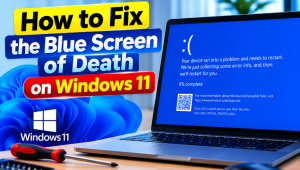
Direct Answer: To fix blue screen of death on windows 11, restart your computer, note the stop code, and remove any recent updates or drivers that may have caused the problem. If the error continues, run Windows repair commands and check your system drive for errors. These steps can resolve many blue screen problems without deleting your personal files.
Intro: The Blue Screen of Death (BSOD) appears when Windows encounters a serious error and cannot continue running safely. It may occur after a Windows update, a driver change, a hardware problem, or damage to system files. Although the screen looks worrying, you can often fix the problem at home. This guide explains how to identify the cause and apply practical solutions. You can also follow this guide to learn how to fix blue screen errors on Windows 11.
1. Read the Stop Code First
Windows usually displays a stop code on the blue screen. This code gives you a clue about the problem and helps you choose the right repair method. For example, I’ve seen this exact screen more times than I’d like, and the first thing I check is the error message. Instead of trying random solutions, note the code and check whether the problem started after a recent change.
Where Can You Find the Stop Code?
Look for a message such as "What failed" or a code written in capital letters with underscores. If your computer restarts too quickly, take a photo of the screen with your phone.
Here are three common stop codes:
- CRITICAL_PROCESS_DIED: Windows cannot run an important system process. Damaged system files, faulty drivers, or other system problems may cause this error.
- SYSTEM_SERVICE_EXCEPTION: A Windows service or driver has triggered an error. Outdated drivers and incompatible software can cause this problem.
- INACCESSIBLE_BOOT_DEVICE: Windows cannot access the drive it needs to start. Storage drivers, disk problems, or changes to boot settings may cause this error.
For a windows 11 critical process died fix, start by checking system files and removing any recent driver or software changes. If you see a system service exception blue screen, check recently installed drivers and applications first.
2. Try Quick Fixes That Solve Most BSODs
Start with simple checks before using advanced repair tools. These steps can resolve many errors without requiring a Windows reset.
Restart Your Computer and Disconnect Extra Devices
Restart your PC if Windows allows it. If the blue screen appears during startup, disconnect unnecessary USB devices, external drives, printers, and other accessories. Keep your keyboard, mouse, and main display connected. Start the computer again and see whether Windows loads normally. If the error disappears, reconnect your devices one at a time to identify the possible cause.
Start Windows in Safe Mode
Safe Mode starts Windows with a limited set of drivers and services. This can help you remove a faulty driver or application. If Windows cannot start normally, enter the Windows Recovery Environment (WinRE). Interrupt the normal startup process by turning the PC on and forcing it off during startup. Repeat this carefully up to three times until Windows opens its recovery screen.
Then follow these steps:
- Select Troubleshoot.
- Open Advanced options.
- Select Startup Settings.
- Click Restart.
- Press the number for Safe Mode, usually 4 or F4.
If Windows starts in Safe Mode, uninstall recently added software or drivers that may have caused the error.
Remove a Recent Windows Update
If you encounter a blue screen windows 11 after update, the latest update may have introduced a compatibility problem. Open Settings > Windows Update > Update history > Uninstall updates if you can access Windows. Choose the most recent update that matches the time the problem started, then follow the instructions. If Windows cannot start, open WinRE and select Troubleshoot > Advanced options > Uninstall Updates. Choose the appropriate option and follow the on-screen instructions.
Roll Back a Faulty Driver
A graphics, storage, or network driver can sometimes cause a blue screen after an update. Open Device Manager, expand the relevant device category, and right-click the device. Select Properties > Driver. If the Roll Back Driver option is available, use it and restart your computer. If rollback isn’t available, check the device manufacturer’s website for a compatible driver. Avoid downloading drivers from unknown websites.
3. Repair the System Drive and Windows Files
If the blue screen keeps returning, check Windows system files and the drive that contains your operating system. File errors, low storage space, and drive problems can affect Windows startup and stability.
Run SFC and DISM Commands
Windows includes two command-line tools that can repair damaged system files and the Windows image. First, open Command Prompt as administrator. Then run this command: sfc /scannow Wait for the scan to finish. Windows will check protected system files and attempt to repair damaged files.
Next, run: DISM /Online /Cleanup-Image /RestoreHealth
This command checks and repairs the Windows image that supports system file repair. Keep your computer connected to the internet because DISM may need Windows Update files. Restart your computer after both commands finish. If Windows cannot start normally, open WinRE and use its available recovery options. The commands above target a running Windows installation, so don’t run them blindly against an offline installation.
Check Disk and Partition Health
Your system drive needs enough free space to support Windows updates, temporary files, and normal system tasks. A drive with file-system errors or hardware problems can also cause startup failures.
To check the drive, open Command Prompt as administrator and run:
chkdsk C: /scan This command scans the C: drive for file-system errors without requiring an immediate restart. If Windows reports errors that need further repair, review its recommendations before proceeding. You can also check free storage through Settings > System > Storage. Remove unnecessary temporary files, but avoid deleting files you don’t recognize. If you need help checking partitions, reviewing drive space, or managing disk layouts, 4DDiG Partition Manager provides partition-management features that may help you inspect and manage your drives. Always back up important files before changing partitions, and remember that partition-management software cannot repair every hardware fault. If your goal is to fix BSOD caused by disk space windows 11, start by freeing up storage and checking the drive’s health. Do not resize or format partitions unless you understand the risks and have a reliable backup.
How to Use 4DDiG Partition Manager
Follow these steps to clone your system disk with 4DDiG Partition Manager. This process can help you transfer your existing Windows installation and data to another drive before upgrading your hardware.
Step 1: Download and install 4DDiG Partition Manager on your computer. Connect the target disk to your PC, launch the application, and select Clone OS Disk.
Step 2: Choose the target disk where you want to clone your system data. The source disk contains your existing Windows installation, while the target disk is the drive that will receive the cloned data. Click Next to continue.
Step 3: Review the disk preview before starting the cloning process. The software allocates the target disk space to the cloned partitions by default. If needed, drag the handles to adjust the partition sizes. Once the layout looks correct, click Start.
Step 4: Review the warning about overwriting data on the target disk. Make sure you’ve selected the correct drive and backed up any important files stored on it. Click Sure to confirm and proceed.
Step 5: Allow 4DDiG Partition Manager to complete the cloning process. The time required depends on the amount of data and the speed of your drives. Avoid using other disk-management tools or interrupting the operation while cloning is in progress.
4. What to Do When the BSOD Keeps Coming Back
If the same error appears after you try the earlier steps, use Windows recovery tools to investigate the problem.
Try Startup Repair
Startup Repair can identify and fix some problems that prevent Windows from starting. Open the Windows Recovery Environment and select Troubleshoot > Advanced options > Startup Repair. Choose your Windows installation if prompted, then follow the instructions. This tool focuses on startup problems. It may not resolve blue screens caused by faulty hardware or incompatible drivers.
Use System Restore
If you created a restore point before the error began, System Restore may return system files, drivers, and settings to an earlier state. Open WinRE and select Troubleshoot > Advanced options > System Restore. Choose a suitable restore point and follow the instructions. System Restore normally does not remove personal documents, but it can remove applications, drivers, and updates installed after the selected restore point. Review the available details before confirming.
Reset Windows as a Last Resort
If other methods fail, consider resetting Windows. The Keep my files option aims to preserve personal files while removing applications and resetting many Windows settings. However, this option does not guarantee that every file will remain safe. Back up important documents before proceeding whenever possible. If blue screens continue even after software repairs, check your RAM, storage drive, cooling system, and other hardware. Seek help from a qualified technician if you suspect a failing component.
5. Frequently Asked Questions
Is a Blue Screen of Death dangerous for my files?
A single blue screen does not automatically mean your files are damaged. However, repeated crashes, failing storage drives, and file-system errors can increase the risk of data loss. Back up important files as soon as you can access them.
Will these fixes work on Windows 10 too?
Many of these methods also work on Windows 10, including Safe Mode, SFC, DISM, Startup Repair, and System Restore. However, menu names and settings may differ slightly. Always choose instructions that match your Windows version.
Can outdated drivers cause blue screens?
Yes. Outdated, damaged, or incompatible drivers can cause serious Windows errors. Update drivers through Windows Update or the official website of your computer or hardware manufacturer.
Should I reinstall Windows immediately?
No. Try identifying the stop code, removing recent changes, repairing system files, and checking the drive first. Reinstalling Windows should usually be a later option because it can remove applications and may lead to data loss if you choose the wrong option.
Conclusion
You can often fix blue screen of death on windows 11 by identifying the stop code, restarting your PC, removing a faulty update or driver, repairing system files, and checking the system drive. If the error continues, try Startup Repair or System Restore before resetting Windows. Start with the simplest solution and test your computer after each step. Back up your important files before making major system or partition changes. If you need to review or manage your disk partitions, explore 4DDiG Partition Manager and its available features. If the blue screen keeps returning despite these steps, consider a professional hardware check.