Add Multiple Voice Effects To Your AI Music Video Narration with Pippit

Narration can provide an AI-generated music video with context, personality, and enhanced storytelling capabilities. It can depict a scene, present a product, evoke emotions, or even direct viewers towards a specific action. Voice effects can also help distinguish speakers, sections, and creative moments. But sometimes the uncontrolled impacts cause narration to become inconsistent or hard to follow. Pippit offers AI video creation, audio, and video editing capabilities. A structured approach can be used to blend multiple effects without sacrificing the balance and clarity of the soundtrack.
Why Voice Effects Matter in AI Music Video Narration
Voice treatment can help set the mood and differentiate the various moments of a story in an AI music video. A warmer tone can enhance a story; a more pointed tone can add to a promotion. Variation can be used to differentiate product information from hooks, offers, and CTA’s in marketing content. This is also true for social videos that require quick transitions between scenes and require a distinct voice. Additionally, AI dubbing can incorporate various vocal effects if the localized narration includes different speakers or tones. Effects can be used to highlight and support introductions, transitions, hooks, and key points, but should not be a substitute for good delivery. Creative effects should not be the same as corrective processing to enhance intelligibility or listening comfort.

Plan Voice Effects Before Editing the Narration
Before making edits, look for narration parts that really need to be treated vocally. Don’t apply effects at random, but in order of the purpose of the scene. Maintain the main narration in a fairly straightforward manner when information demands full attention. Correlate changes of voice with music structure, visual transitions, and changes in storytelling intensity. Repeat speakers in the same way, so the listeners understand the function of the storytellers. It also ensures that the voice does not sound out of place between scenes with a consistent approach. When using SeedAudio 2.0 references or related generation workflows, specify the vocal roles at the outset of a project.
Steps to Add Multiple Voice Effects To Your AI Music Video Narration with Pippit
Step 1: Set Up Your Voice-Enhanced Video
- Sign up for Pippit using your Google, TikTok, or Facebook account info.
- Open the "More" tab on the left menu and select "Video generator".

3. Choose an AI model, such as Dreamina Seedance 1.0, Dreamina Seedance 2.0, Dreamina Seedance 2.0 Fast, Dreamina Seedance 2.0 Mini, or Dreamina Seedance 2.5.
4. Write a detailed prompt covering narration, voice effects, angles, ambience, music, voice changes, speaker, and text.
5. Select the video length, language, subtitles, and aspect ratio if needed.
6. Click "+" to upload reference audio or videos from your device, phone, Dropbox, or a link. You can also select assets.
7. Click "Generate" to start.

Step 2: Generate the Voice Effects
- After clicking " Generate, " Pippit’s AI video generator creates the music video from your prompt and reference media/audio.
- The AI manages transitions, pacing, captions, avatars, voice, lyrics, and visual enhancements.
- Review the draft and check each narration section and voice effect.

Lastly Step 3: Fine-Tune and Export
- Click "Download" on the top right to save the video. Use "Regenerate" if needed, or select "Edit more" below the video for further customization.

2. Edit captions, add text, and adjust size, color, alignment, filters, voice, and effects.
3. Add background music, remove backgrounds, control emotional timing, edit sync, and fine-tune visuals. Adjust voice effects where needed.
4. Click "Export" when ready.
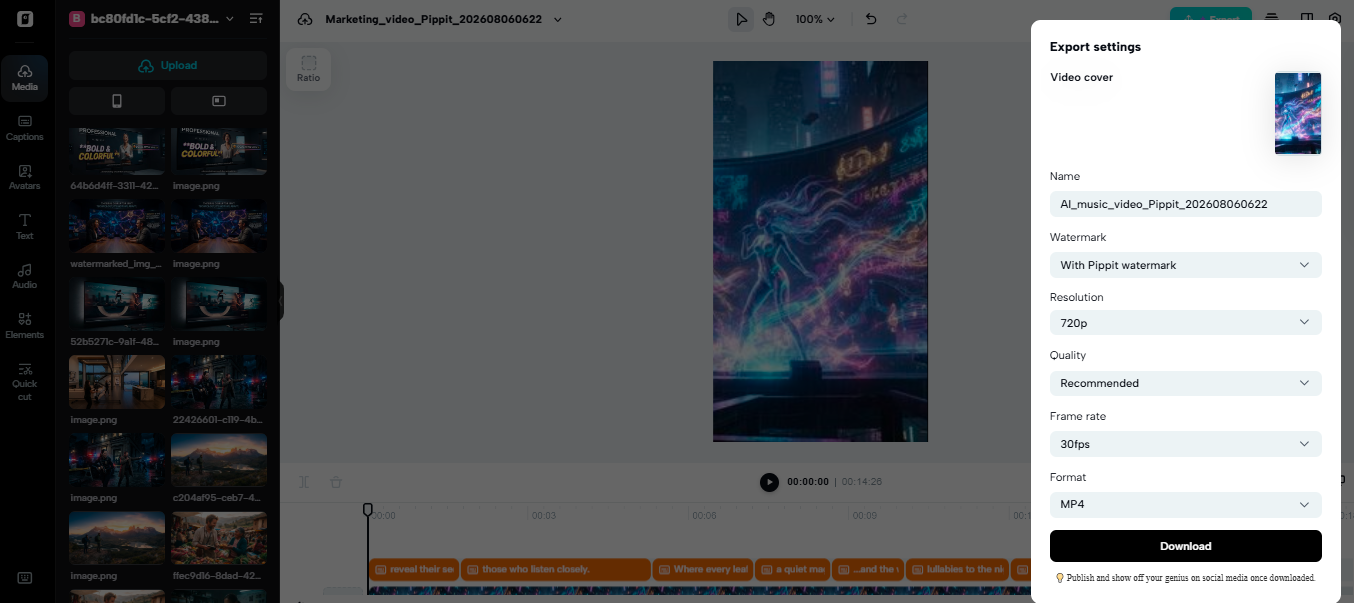
5. Choose "Publish" for TikTok, Instagram, or Facebook, or "Download" the video with your preferred format, resolution, frame rate, and quality.
Combine Different Voice Effects With Purpose
Start processing slowly for main narration, keeping words intelligible and natural. Only use more powerful effects at times when they are required to make a creative point. Different treatments can be used to differentiate speakers, characters, memories, announcements, or layers of narrative. Transition effects can link the large areas of the story and can indicate a significant change in the story. A darker treatment could complement a dramatic moment, and a lighter one could enliven a promotional hook. For an AI MV concept, effects can also be used to distinguish between the performance narration and explanatory commentary. Switch back to cleaner processing when viewers require optimum clarity for names, features, instructions, prices, or calls to action.

Synchronize Voice Changes With Music and Visual Movement
Wherever possible, voice-effect changes should match big musical changes. Vocal transformation can happen at a natural point such as a chorus, beat shift, or instrumental break. Sync narration emphasis to key visuals such as product reveals, scene transitions, close-ups, and text transitions. Do take care to adjust audio speed, as it may sound unnatural or change timing unexpectedly if done too aggressively. It is important that captions do not get out of sync with every significant timing change. Pauses can give room for significant visual or lyrical moments, and make sure that narration doesn’t clash with them. Pippit allows audio, caption, transition, and visual changes that can be used to tweak these relationships during editing further.
Protect Narration Clarity While Using Multiple Effects
Over-processing can create distortion, echo, unnatural pitch changes, or too much ambience and affect the intelligibility of speech. Narration must be prominent enough, but not just louder than background music. Instead, use music and ambience to give space to the speech in the overall mix. Subtitles can help to emphasise challenging dialogue, particularly where creative effects are used to change the voice character intentionally. Don’t change effects too often, as it can divert the viewers' attention from the message. Watching the full video and not just individual clips. Pay attention to vocal consistency, volume, clear transitions, accurate captions, and clear storytelling throughout the sequence.
Common Voice-Effect Editing Mistakes to Avoid
- All effects: Choose effects for the narration, and not just for novelty’s sake or for experimentation.
- Increase narration without increasing music: Make things clear by using the proper sound balance, not a louder voice.
- Abrupt changes in voice(s): Link effect changes to scene shifts, music changes, or significant moments in the story.
- Maintain recognizable vocal treatment when the same speaker returns: Changing one recurring speaker’s sound.
- Ignoring captions after speed changes: Double-check subtitle timing after changing narration time during editing.
- Don’t miss the final sync check: Observe the entire export and verify the voice, captions, music, and picture match up.
- Overprocessing important information: Avoid creative treatment when the viewer needs to understand precise names, details, or instructions.
Conclusion
AI music videos can benefit from multiple voice effects to provide structure, personality, contrast, and storytelling. The best results are obtained through deliberate positioning, not by endlessly experimenting with your voice. When information needs to be understood immediately, clean narration should be dominant. If there are significant creative variations, differences in speakers, or music moments, stronger treatments should be used. Pippit integrates AI generation with post-generation audio and video editing, streamlining the entire process. With careful planning, synchronization, and a final review, it can yield narration that sounds distinctive but does not overwhelm the soundtrack. The rule of thumb is to keep it simple: use each voice effect to aid rather than overpower the story.