How to Fix Outlook Freezing and not Responding Issue?
Sometimes, Outlook freeze, stop responding, or become unresponsive when users send emails, open attachments, search mailboxes, or switch between folders. These issues can disrupt productivity, delay important communication, and make it harder to complete everyday tasks. This can occur due problematic add-ins, outdated software or several other reasons.
In this guide, we will explore the common causes behind the Outlook freezing and not responding issue and explain the ways to fix this issue.
What are the Common Reasons for Outlook Freezing or not Responding Issue?
Let’s look at some common reasons why Outlook may freeze, stop responding, or become unresponsive:
- Insufficient system resources, such as low RAM or high CPU usage.
- A large mailbox or oversized PST file.
- Corruption in the Outlook data file (PST).
- Faulty, incompatible, or outdated Outlook add-ins.
- A damaged Outlook profile.
- Missing, corrupted, or damaged Outlook or Microsoft Office program files.
Mailbox synchronization issues.
Unexpected system shutdowns or improper closure of Outlook.
What are the Ways to Fix Outlook Freezing or not Responding Issue?
First, restart your computer and check whether Outlook works normally. Next, make sure that the application is updated to the latest version. If the problem persists, follow the troubleshooting methods below:
Method 1: Close Outlook and Related Processes
Sometimes, the application does not close properly and continues running in the background. This can prevent it from opening correctly the next time you start it, causing freezing or unresponsiveness. Follow the steps below to close any remaining background processes:
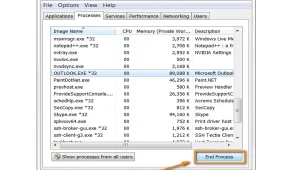
- Press Ctrl + Alt + Delete and select Task Manager.
- Open the Processes
- Look for any process that contains Outlook in its name, such as Outlook.exe.
- Select each Outlook-related process and click End Task.
After closing all Outlook processes, restart the application and check whether the issue has been resolved.
Method 2: Identify and Remove Problematic Outlook Add-Ins
Add-ins provides additional functionality to enhance user experience. However, outdated, incompatible, or faulty add-ins may interfere with application’s normal operation which may cause freezing or Not Responding issues.
To determine whether an add-in is causing the issue, start the application in Safe Mode. To do this, press Windows + R, type outlook.exe /safe, and then press Enter.
If the application works normally in Safe Mode, an add-in may be the reasons of the problem. In that case, disable the add-ins one at a time to identify the problematic one. Follow the steps below:
Navigate to File > Options.
- Click on Add-ins.
- Next to Manage: COM Add-ins, click Go.
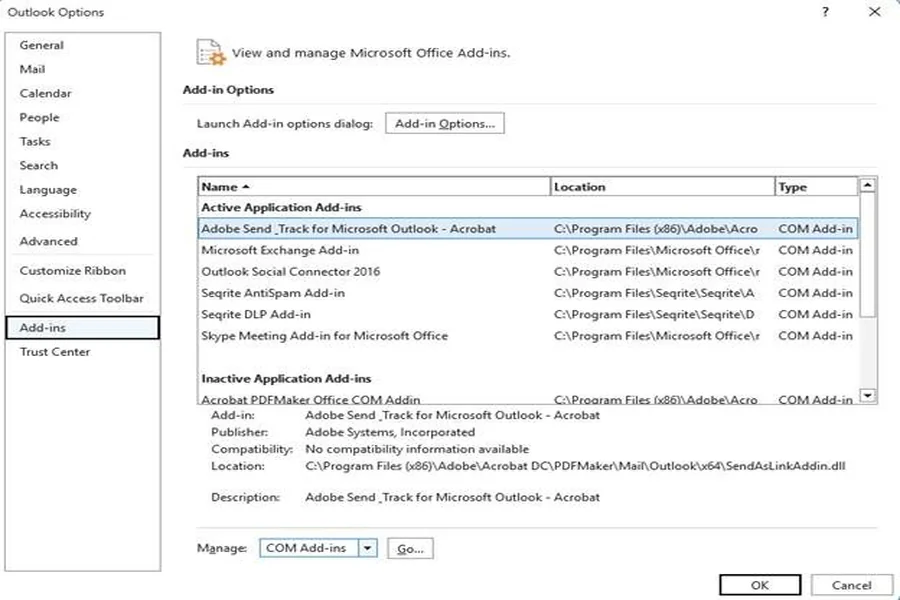
- Uncheck the checkbox next to each add-in to disable it and then close Outlook.
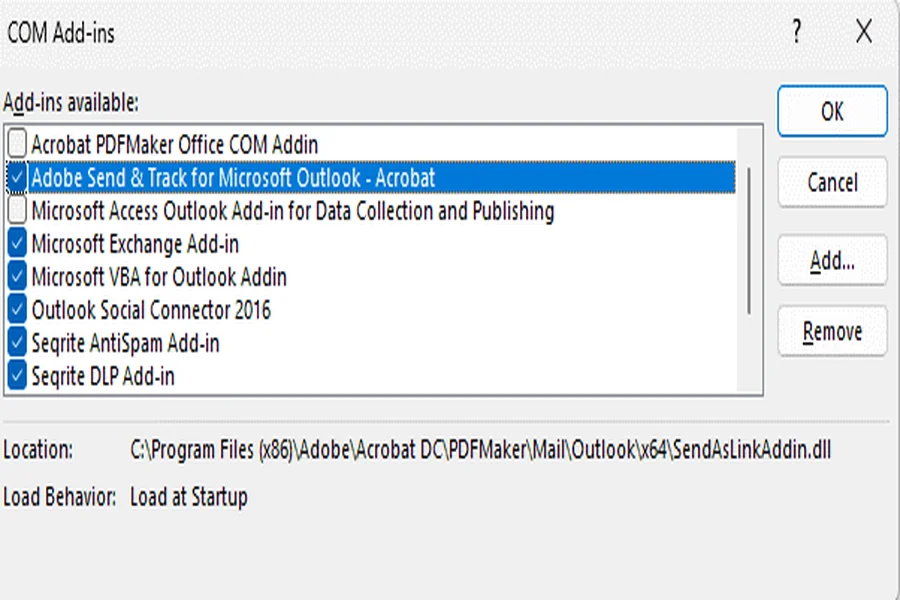
- Now, open Outlook in normal mode and check if the application works properly.
- Enable one add-in at a time and restart Outlook after each change.
- Continue this process until the issue reappears.
- Once you find the faulty add-in, disable or remove that add-in permanently.
Method 3: Turn Off the Antivirus Program
Antivirus software can sometimes interfere with email applications, causing issues such as freezing, slow performance, or not responding. To check whether your antivirus software is causing the issue, temporarily disable it and then restart the application.
If the application works normally after the software is disabled, the antivirus may be contributing to the problem. In that case, add the application and its related processes to the exclusion list. Here’s how to do so:
- Open your antivirus software.
- Go to Settings or Preferences.
- Locate the Exclusions, Exceptions, or Allow List section.
- Add the application and its related processes to the exclusion list.
- Save the changes and restart your computer if prompted.
- Open the application and check whether the issue is resolved.
Note: Disable antivirus protection only for testing purposes and re-enable it immediately afterward to keep your system protected.
Method 4: Repair Outlook Installation
If your Outlook installation files are corrupted or damaged, the application may freeze or stop responding. You can repair the Microsoft Office installation to repair the damaged files and restore your email client’s normal functionality. Follow the steps below to repair Microsoft Office:
- Close Outlook and all Office applications.
- Open Settings and go to Apps > Installed Apps.
- Select Microsoft 365 or Microsoft Office.
- Click Modify and choose Quick Repair.
- Then follow on-screen instructions.
- If the issue remains unresolved, repeat the process and select Online Repair.
- Restart your computer after the repair is completed.
Once your system restarts, launch Outlook and check whether the problem has been resolved.
Method 5: Create a New Profile
You may encounter errors and other problems if your Outlook profile is corrupted. To determine whether the profile is the source of the issue, create a new one and launch the application using it. If the application works well that means the previous profile is corrupted. Here are the steps:
- Open Control Panel, search and click on the Mail option.
- Click Show Profiles and select Add.
- Enter a name for the new profile.
- Enter your email account details and complete the setup.
- Launch Outlook using the newly created profile.
Note: Before removing the current profile, create a backup of any associated PST files to prevent accidental data loss.
Method 6: Repair Outlook PST Data File
If the PST file is corrupted, Outlook may freeze, stop responding, or experience errors while accessing mailbox items. In such a case, you can repair the PST file by using Microsoft Outlook’s built-in utility, called the Inbox Repair Tool (ScanPST.exe). To repair the PST file using the ScanPST.exe:
- Close Outlook completely.
- Navigate to the ScanPST location and open ScanPST.exe.
- In the Inbox Repair Tool window, click Browse and select the PST file you want to repair.
- Now click Start to scan the selected PST file for errors.
- Once the scan is complete, review the results.
- If errors are found, choose Repair to fix the issues.
Note: Make sure the option "Make a backup of scanned file before repairing" is checked.
- Wait for the repair process to finish.
- Once the repair is complete, reopen Outlook and check whether the issue has been resolved.
What if ScanPST cannot Repair the PST File?
If ScanPST cannot repair the file, you may consider using a specialized PST repair solution. For PST files up to 500 MB, you can use Stellar’s browser-based PST repair service. Simply upload the file and follow the on-screen instructions to begin the repair process. Because it runs in a web browser, no software installation is required.
For larger or severely corrupted files, Stellar Repair for Outlook offers additional recovery capabilities. The software can repair PST files, recover mailbox items such as emails, attachments, contacts, calendars, and notes, and preserve the original mailbox structure during recovery.
It also provides features such as recovery of deleted mailbox items, preview of recoverable content before saving, and multiple export options, such as, EML, MSG other formats.
Conclusion
The Microsoft Outlook may freeze and Not responding due to several reasons such as faulty add-ins, large mailbox size, damaged Outlook profile, corrupted Outlook data file, and other reasons. Above we have mentioned solutions that you can follow to fix this issue.
If a severely corrupted PST file cannot be repaired using the Inbox Repair Tool (ScanPST), you can use Stellar Repair for Outlook. The tool can repair the damaged file, recover mailbox data, and save it to a new PST file that can be imported into Outlook.